Signing in
You were added to mise en place using the personal email address you gave Lime Connect when you joined the fellowship. That is the email you will use to sign in. There is no separate password.
-
Go to miseenplace.tech in your web browser.
-
You will see a sign-in screen with the words "Enter your email to continue." Type your email address in the field.
-
Review the Terms of Service by selecting the link, then check the box to agree.
-
Select the "Continue" button. You will be taken into the app automatically. If you see an error message, your email address may not be on the access list yet. Contact [email protected] and someone will help you within one business day.
Your first visit
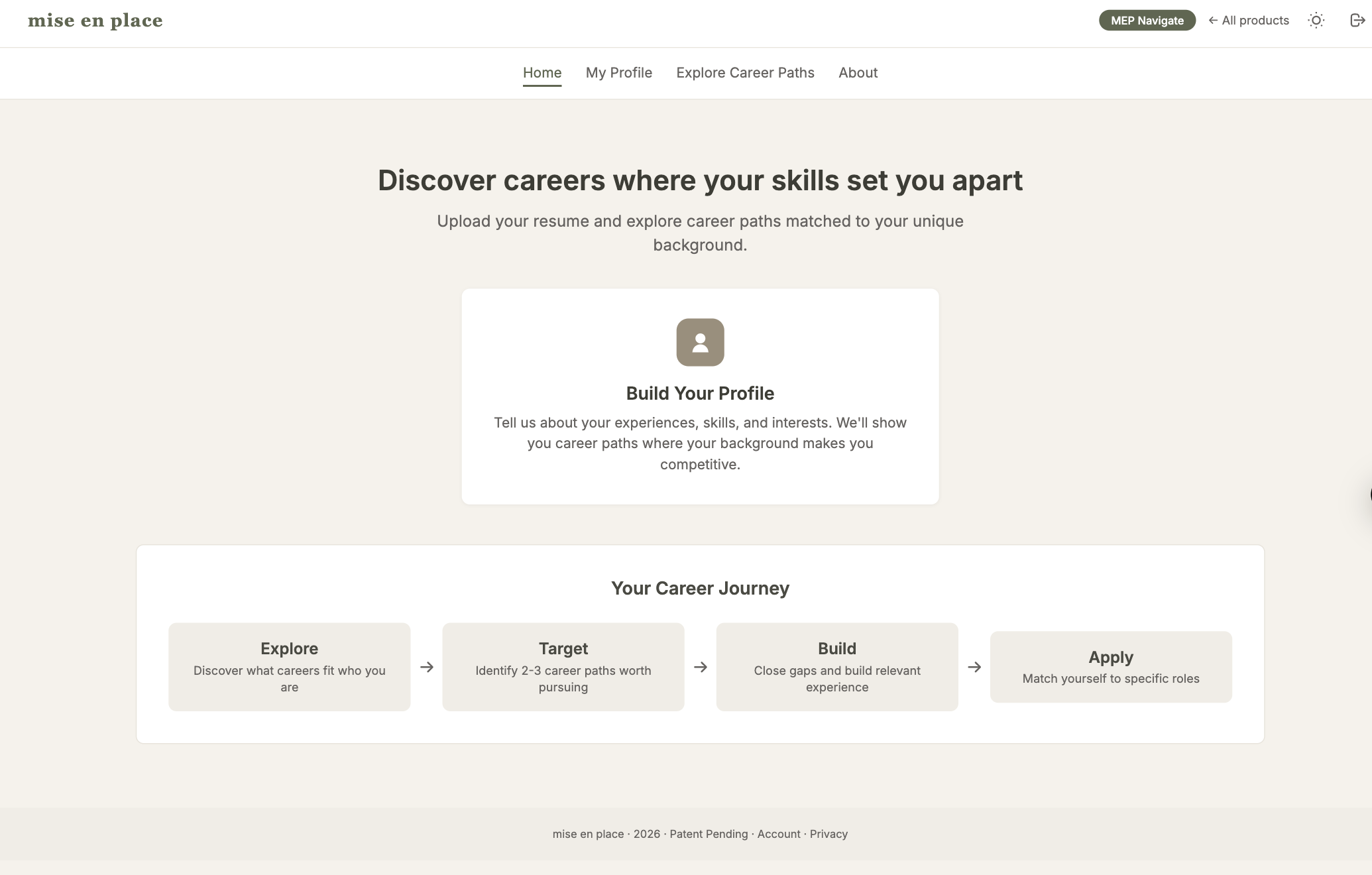
After signing in, you will see a welcome screen with several options. As a Lime Connect fellow, you will use MEP Navigate. This is the tool designed for students and career changers.
-
Look for the option labeled "MEP Navigate" with the description "For students and career changers. Discover careers where your skills make you competitive."
-
Select MEP Navigate. You will be taken to the main screen where you can start exploring.
Once inside MEP Navigate, you will have two main paths available from the navigation. Explore Career Paths helps you discover roles and industries that match your background. My Profile lets you view and manage the information you have shared about yourself. You can switch between these options whenever you like. There is no wrong choice.
Exploring career paths
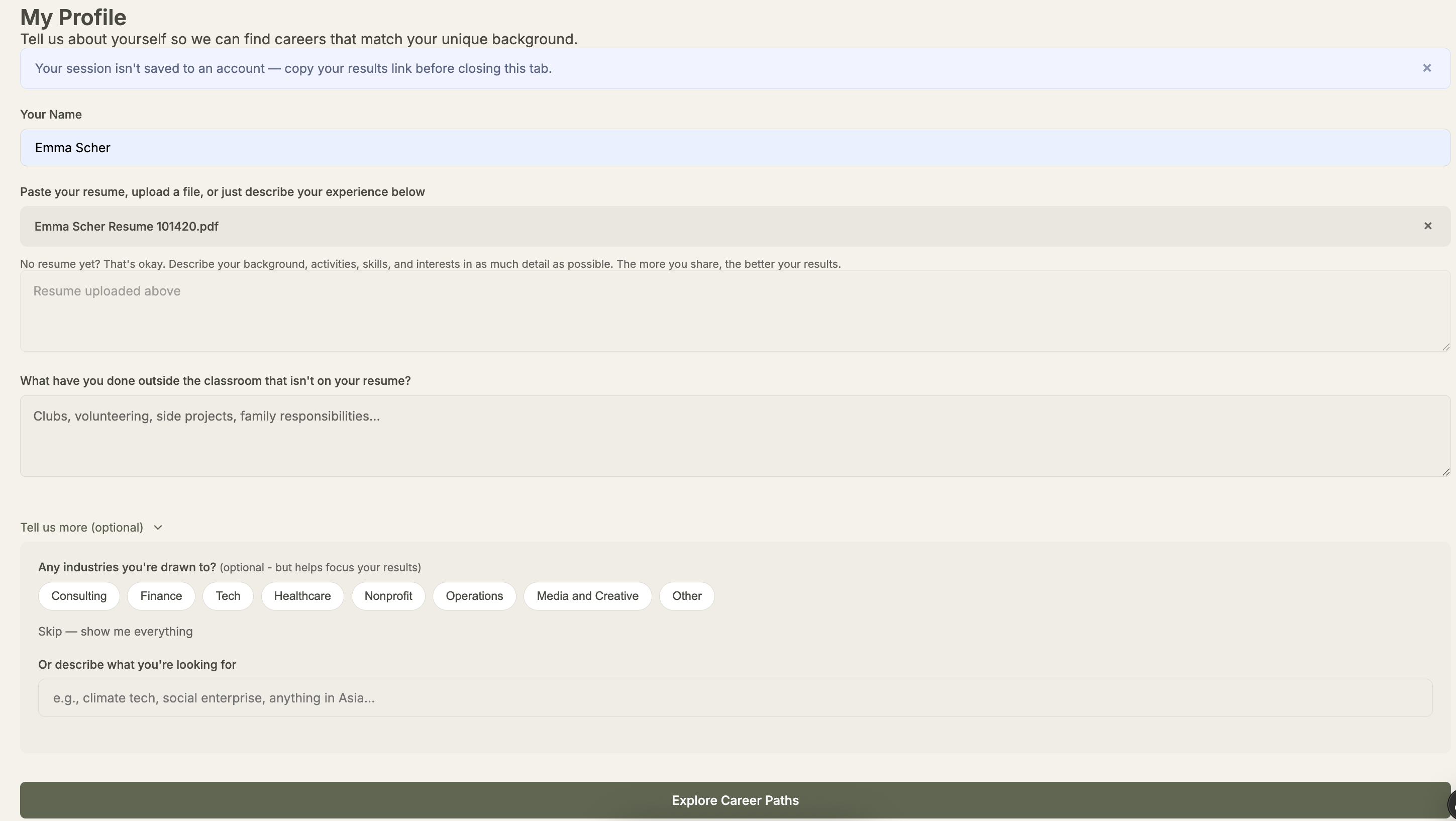
This tool helps you discover career paths based on what you share about yourself. The page opens with the message "Tell us about yourself so we can find careers that match your unique background." The more detail you provide, the more relevant your results will be.
-
Start by entering your name in the "Your Name" field at the top.
-
In the main text area, you can paste your resume, upload a PDF or Word document, or simply describe your work experience, education, skills, and interests in your own words. The hint below the field says: "No resume yet? That's okay. Describe your background, activities, skills, and interests in as much detail as possible. The more you share, the better your results."
-
If you want to share more, select "Tell us more (optional)" to expand additional fields. These ask about activities outside the classroom, skills you have not been paid for, experiences that set you apart, and work environments that interest you. These are all optional.
-
You will see industry options like Consulting, Finance, Tech, Healthcare, Nonprofit, Operations, and Media and Creative. Select any that interest you, or choose "Skip" if you want to see all possibilities.
-
When you are ready, select the "Explore Career Paths" button. This may take a moment while your information is analyzed.
-
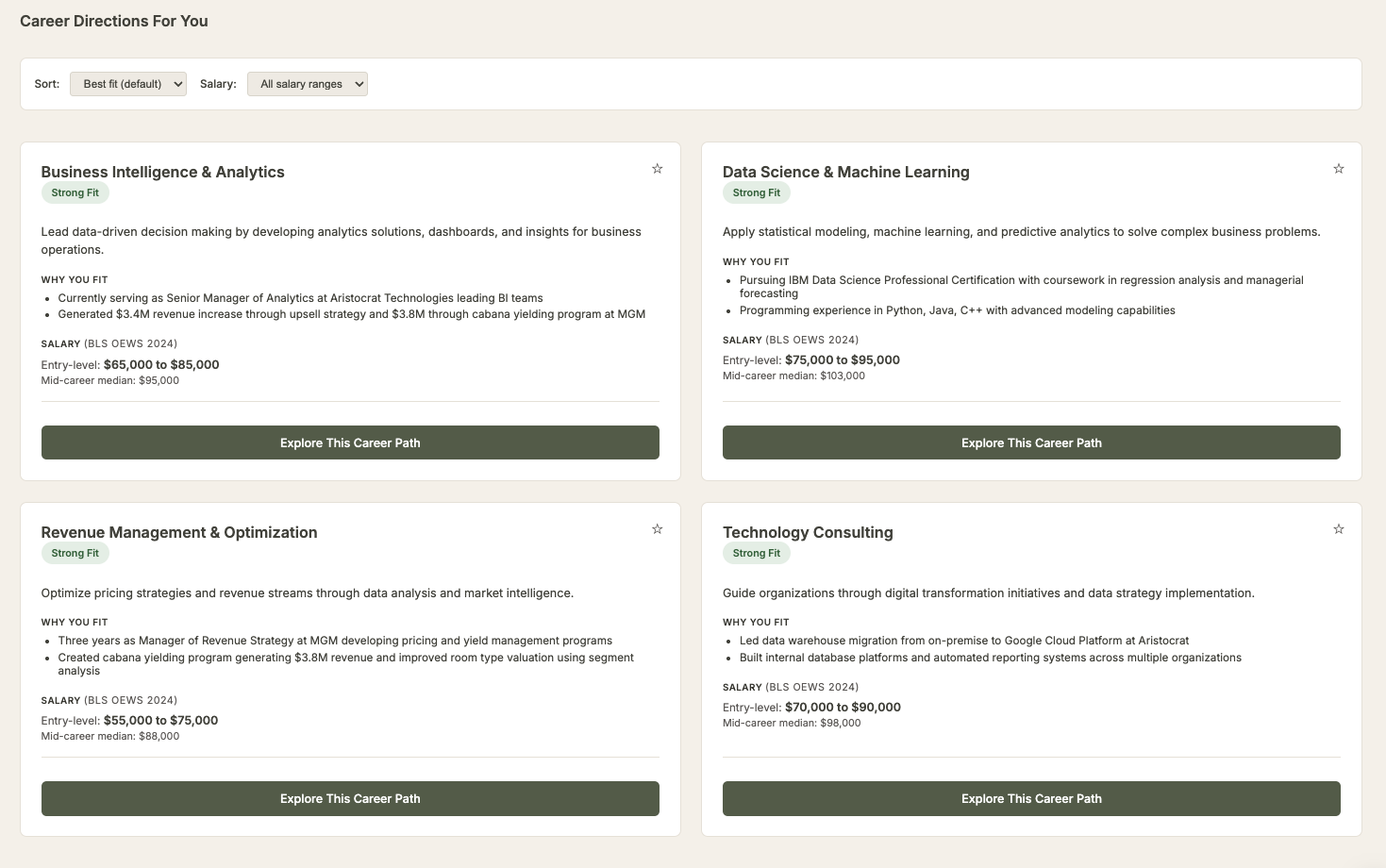
Your results will appear showing career paths that may be a good fit. Each result explains why it might work for you based on what you shared.
Checking your fit for a role
After exploring career paths, you can check how well your background fits a specific role. This gives you detailed insights about your strengths and areas to develop for that career.
-
From your career results, select "Explore This Career Path" on any career card that interests you.
-
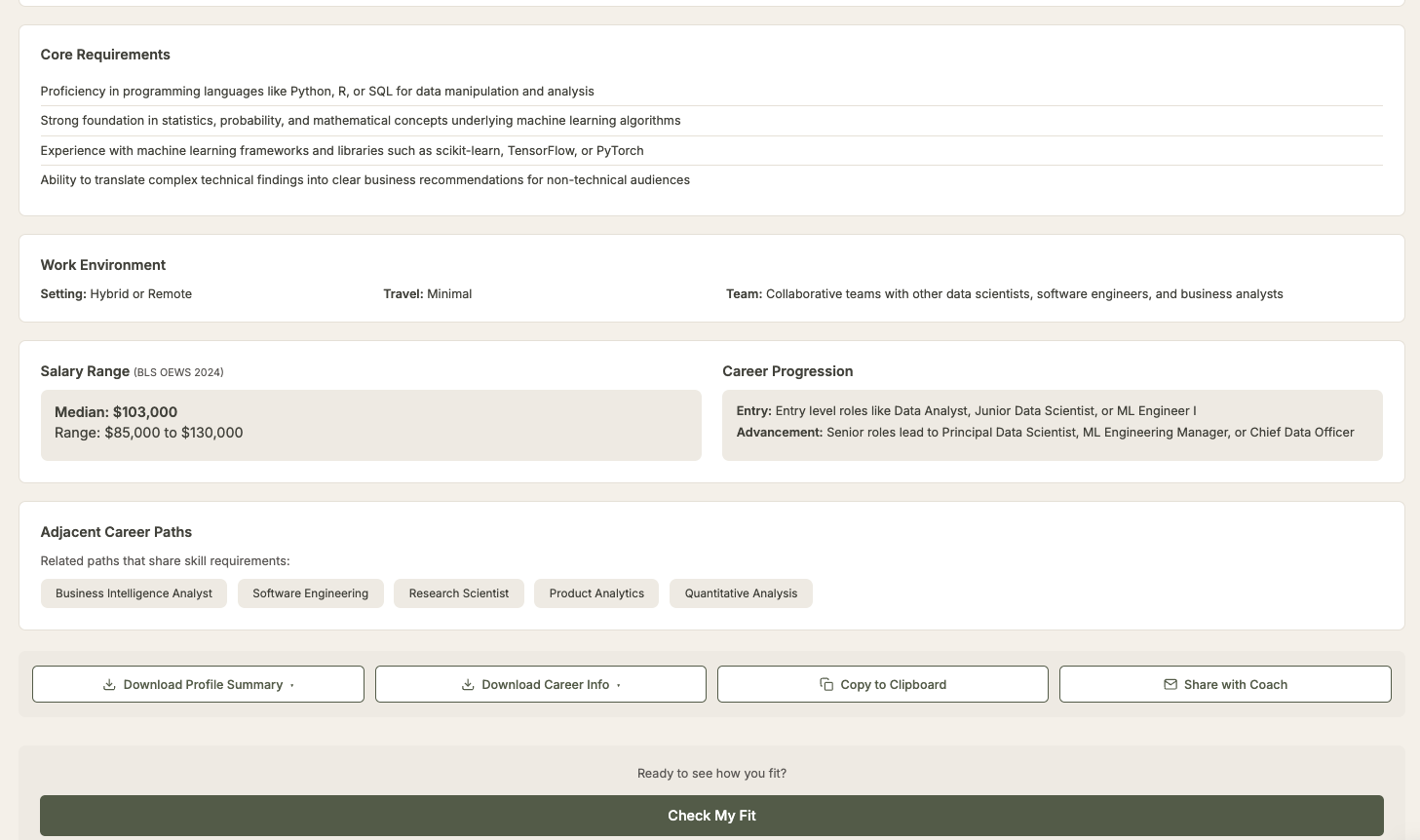
You will see a detailed view of the role, including what a typical day looks like, what you would be walking into, core requirements, salary information, and career progression.
-
At the bottom of the page, select the "Check My Fit" button. This analyzes your specific background against this career path.
-
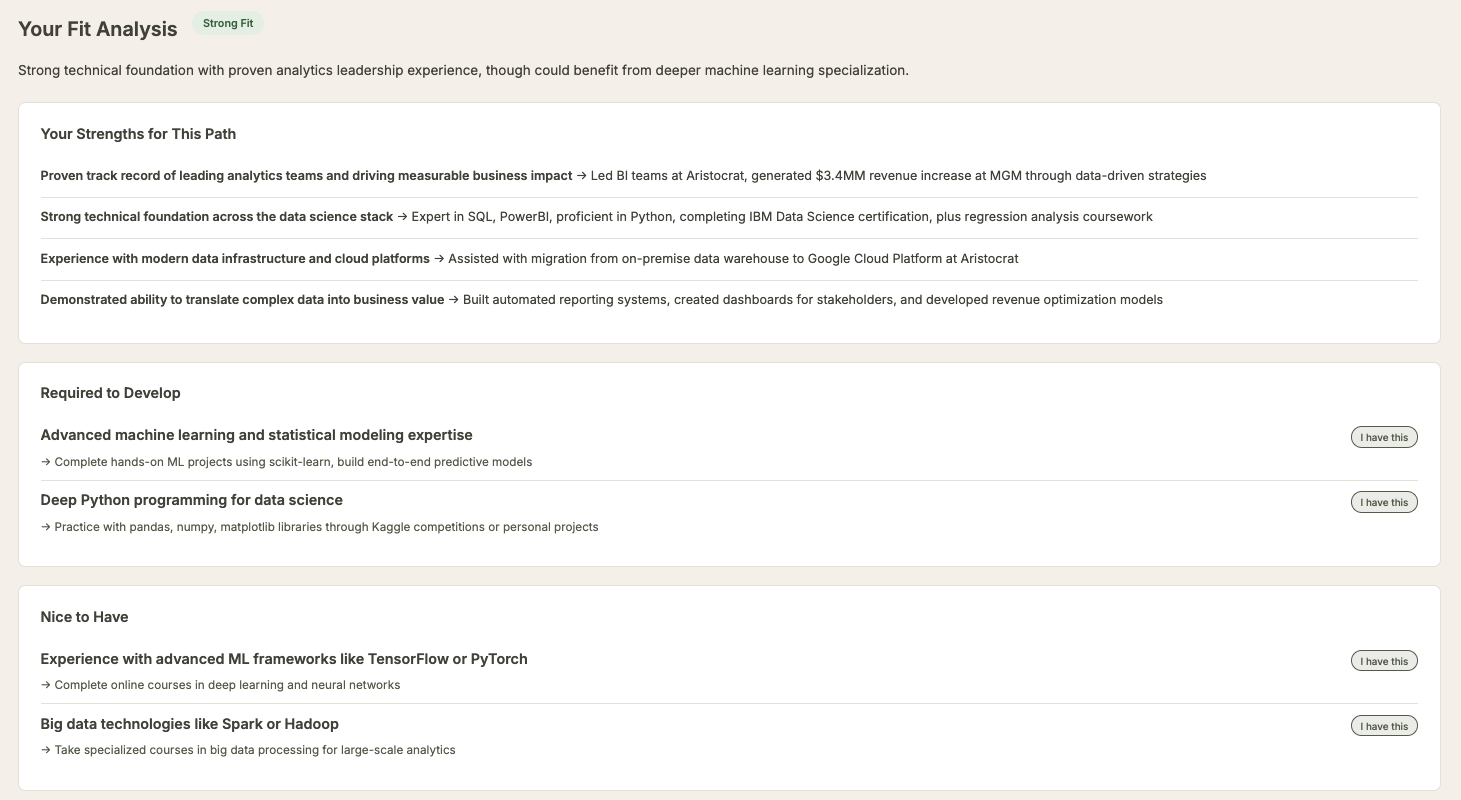
Your fit analysis will show your strengths for this path, skills you might want to develop, and specific recommendations for your resume and application.
Sharing your results
You will see a banner reminding you that your session is not saved to an account. Your results are encoded in the URL in your browser. You can download them or share the link with anyone. They do not need an account to view it.
-
To download your results, look for "Download Overview" or "Download Development Plan" at the bottom of your results. This saves a copy you can keep.
-
To copy your results to paste elsewhere, select "Copy to Clipboard."
-
To share a link, select "Share with Counselor" or "Share with Coach." A window will appear with your link and a "Copy Link" button. The link contains your session analysis, not your resume.
-
Paste the link into an email, text message, or wherever you want to share it. Your counselor, coach, or Lime Connect advisor can open it directly. They do not need an account.
Important: Closing your browser tab ends the session. Copy and share the URL before you close the tab if you want to keep your results.
